
Getting Started on Panosia Connect: Build Trust and Get Discovered
Key Takeaways
- Complete your profile like a resume for the job you actually want. If you already have a biodata document or a LinkedIn profile, a free built-in tool can read it and fill in your profile fields for you.
- Privacy works field by field, not all-or-nothing: choose what's fully visible, blurred, or hidden, and approve full access to your profile one visitor at a time.
- Trust comes from context, not just your own claims. Showing your family, your personal connections, and people who can vouch for you lets visitors see who already knows you.
- A quick identity check (photo ID plus a selfie) is required before you can search for others, browse the directory, or message anyone. Two deeper, optional verification levels build extra credibility on top of that. All verification is pay-per-use, never a subscription.
- Share your live profile link instead of a static PDF so people can find you. Search filters and introductions from people you trust make it easier for the right match to reach you.
Signing up for Panosia Connect takes two minutes. Turning that account into a profile someone would actually want to reach out to takes real thought, and that's the part most people skip.
Think of it the way you'd think about a resume for the job you actually want. You wouldn't submit a half-finished resume for the job of a lifetime and expect the hiring manager to fill in the blanks. Finding a life partner deserves at least that much care.
This guide walks through seven practical steps for Candidates, Panosia Connect's term for anyone building a profile to search for a life partner: completing your profile, setting your privacy, building your trust network, getting verified, getting discovered, messaging safely, and involving your family. Whether you just created your account or have had a profile sitting half-finished for weeks, start here.
Step 1: Complete Your Profile Thoughtfully
Your profile is your first impression. Before you write a word, ask yourself: if someone serious about marriage lands on this page, will they understand who you are?
Start with the basics:
- A clear, recent, respectful profile photo
- An honest "About Me" that sounds like you, not a summary written for a resume
- Key details: education, profession, lifestyle, and values
- Family background and context
- A few quality gallery photos
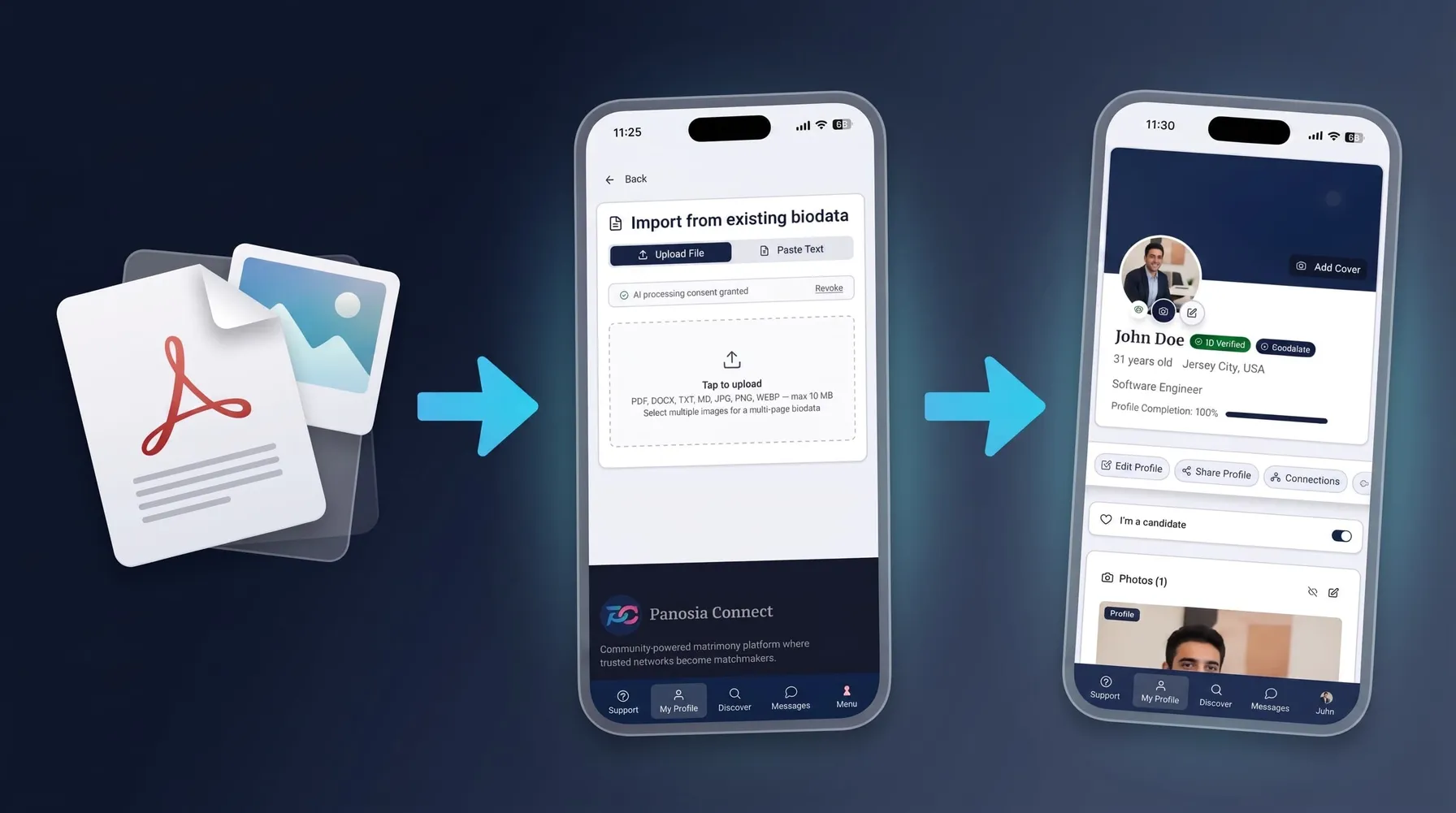
If you already have a biodata document sitting on your computer, a printed biodata you could photograph, or a LinkedIn profile, you don't have to start from a blank page. Profile Import reads it and fills in your profile fields for you, free of charge. You still review and confirm everything before it goes live, so the profile stays yours; the tool just removes the blank-page problem.
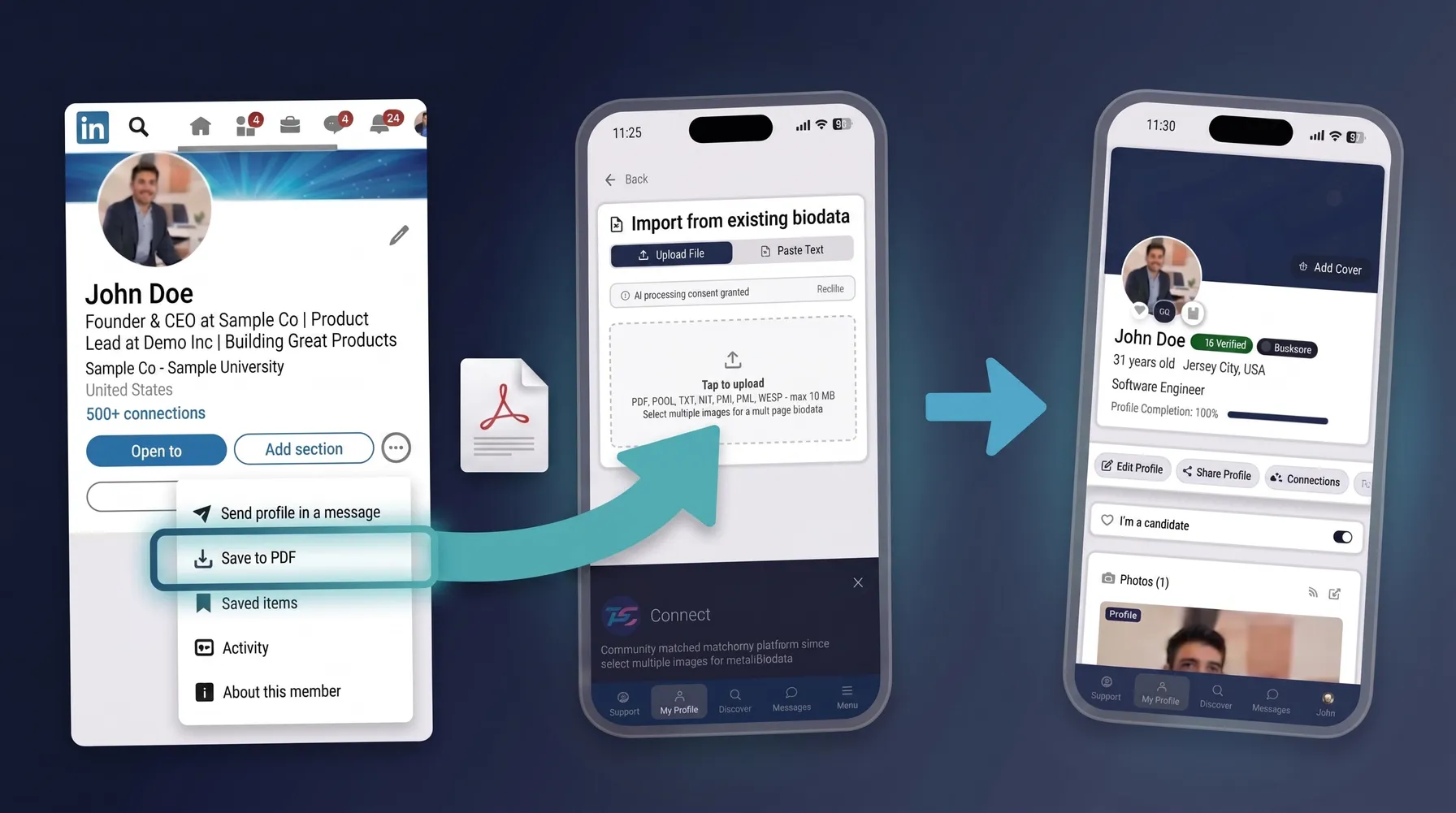
To import from LinkedIn specifically, the flow is: LinkedIn → "Save to PDF" (in your profile's own menu) → upload that PDF to Profile Import. There's no separate LinkedIn connection to set up; it goes through the same PDF import as any other biodata document. Prefer not to save a PDF? Copying the text from your LinkedIn profile and pasting it in works just as well.
Matrimony is built on trust, and trust starts with authenticity. A complete, thoughtful profile signals that you're serious. The goal isn't to impress with polish, it's to represent yourself clearly enough that the right people feel confident reaching out.
Step 2: Set Your Privacy Comfort Level
It's natural to feel cautious about sharing personal details online. Panosia Connect is built to work with that caution, not against it.
Many fields on your profile, not just your photo and name, carry their own privacy control. A photo can be full, blurred, or hidden; a name can be full or initials-only; and other fields carry similar options. Most visitors see your Public View by default, a limited version of your profile. Anyone who wants more has to request your Private View, which you approve or reject person by person. Nothing unlocks automatically.
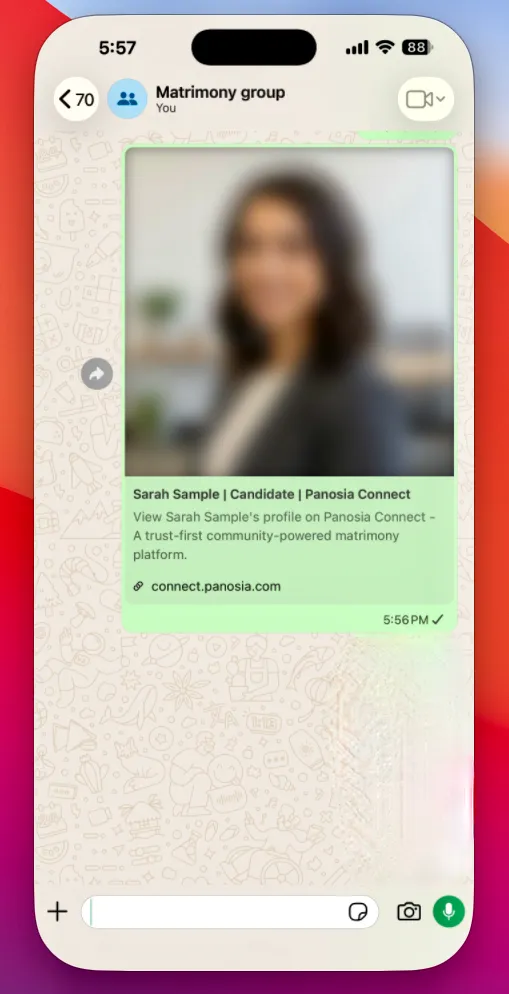
Some people prefer it the other way around: photo public so family and friends recognize them right away, name kept private so the profile doesn't turn up in a plain name search.
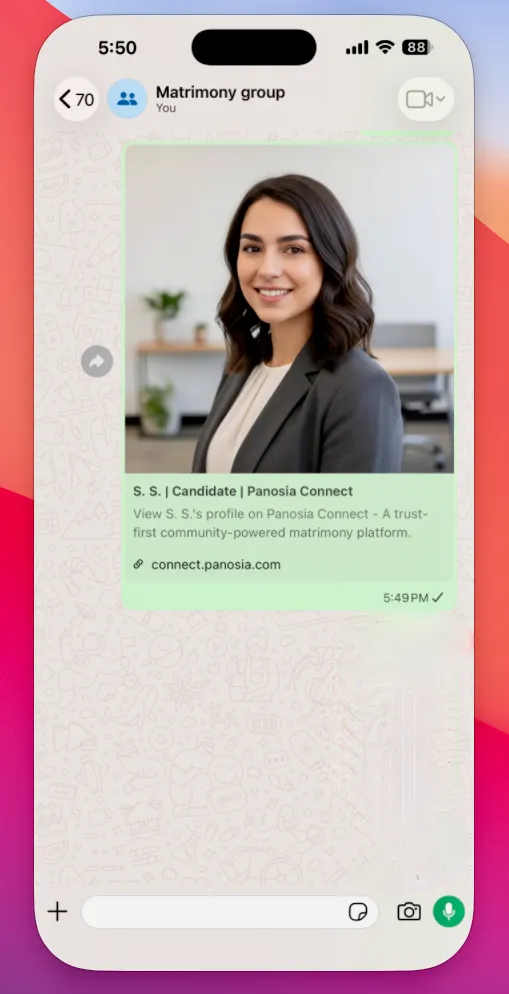
A common approach: keep your photo blurred and your name partly hidden in Public View, then approve Private View selectively for people who seem genuinely serious. That way you're not invisible, but you're not fully exposed to every visitor either.
Balance matters here. If everything is hidden, people hesitate to engage with a profile that tells them nothing. Share enough for others to understand your background and intent, then tighten from there.
You're not locked into any of this: you can pause or delete your own account yourself, at any time, from your own settings, no need to contact support first.
Step 3: Build Your Trust Network
Marriage decisions are rooted in trust, and trust usually comes from context: who someone's family is, who vouches for them, who already knows them.
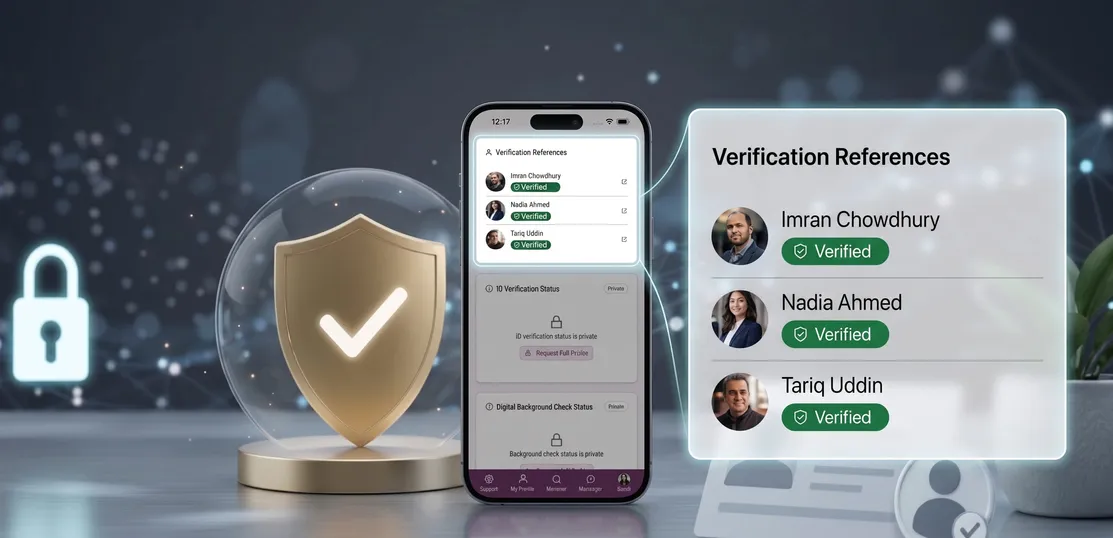
Panosia Connect lets you show that context on your profile instead of asking people to take your word for it. Add your Family Tree (parents, siblings, and other relatives) and your Social Connections (friends and colleagues who know you). List a few Verification References too: real people who know you personally and are willing to be messaged directly by someone checking you out.
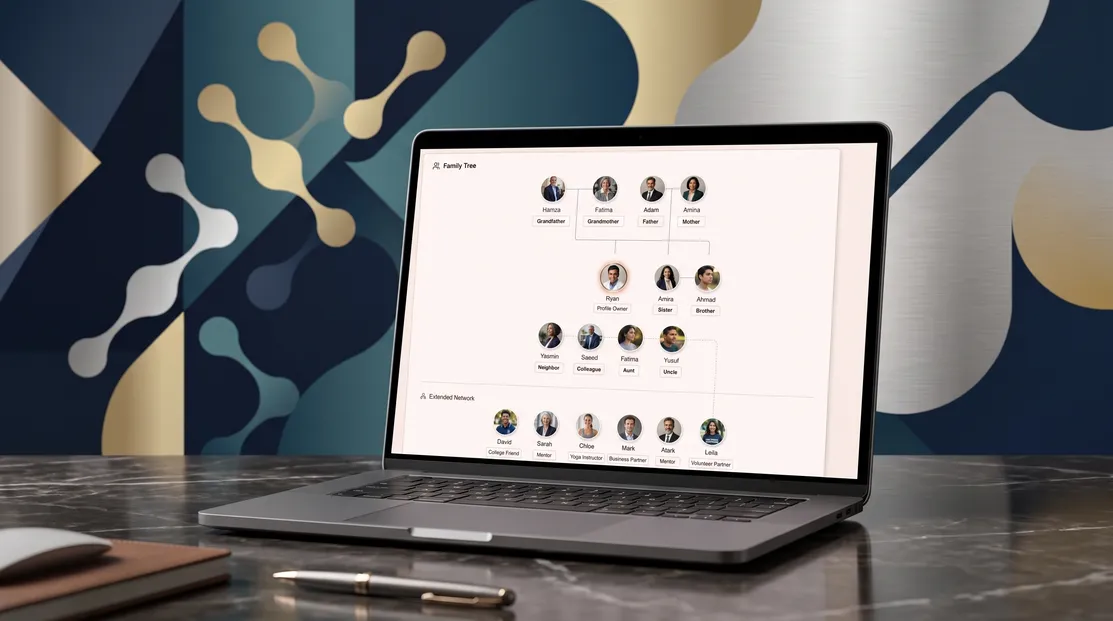
Add a few Verification References so an interested visitor can start a conversation and build trust before reaching out to you directly. If a profile you're visiting doesn't list any yet, it's fair to ask that person to add some.
Once a visitor is granted full access to your profile, they see your environment, not just your claims about yourself. That creates accountability on both sides: someone can see who you're connected to, families can cross-check details through people they may already know, and conversations start from more solid ground.
This works both ways. As you browse other profiles, you can look at their trust network too, and it's often more revealing than an "About Me" section.
Step 4: Get Verified and Build Credibility
Verification is one of the strongest trust signals on the platform. You don't need it to create a profile or build out your Family Tree, Social Connections, and References. You do need it, though, before you can act on any of that: searching for others, browsing profiles through Discover (the platform's search and browse page), requesting someone's Private View, and chatting all require Level 1 ID Verification first. It exists so you can prove things about yourself that would otherwise just be claims.
There are three levels, and each one is pay-per-use rather than a subscription:
- Level 1, ID Verification: a photo ID, a selfie, and a face scan from your phone. This confirms your name, date of birth, gender, and location, and unlocks search, Discover, full-profile requests, and chat. You get a private, shareable report.
- Level 2, Background Check: a live video call where a verifier reviews your personal information, education, and work history. Either side of a conversation can request this once real conversation has started. Both people are notified by email and in-app, and you get a private, shareable report.
- Level 3, In-Person Verification: a local verifier meets you in person and confirms your profile is accurate, following the same request-and-notify flow as Level 2.
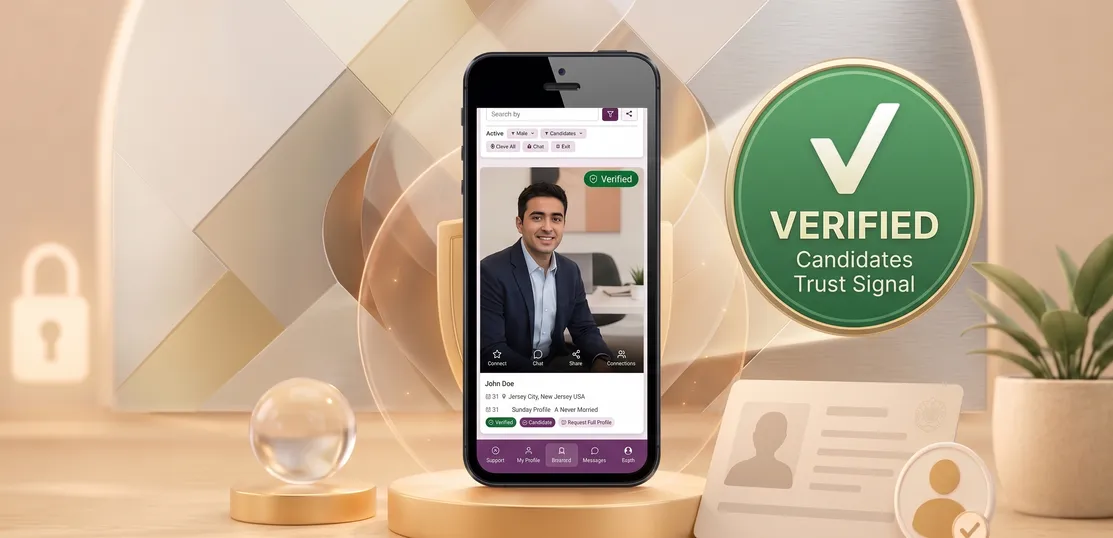
Once you've completed Level 1, Level 2 and Level 3 build additional credibility but neither one is required. Before a serious conversation goes further, it's worth checking the other person's verification status too, and gently encouraging them to complete it if they haven't.
Step 5: Share and Get Discovered
A complete profile that nobody sees doesn't help you. Visibility is the next step.
Skip the static PDF biodata as your main way of sharing yourself. Share your actual profile link instead: it's a live page, not a snapshot, and it respects whatever privacy level the person opening it has been granted. Someone who only has Public View access sees that limited version when they click; someone you've approved for Private View sees your full profile. One link, always current, no separate document to keep updating.
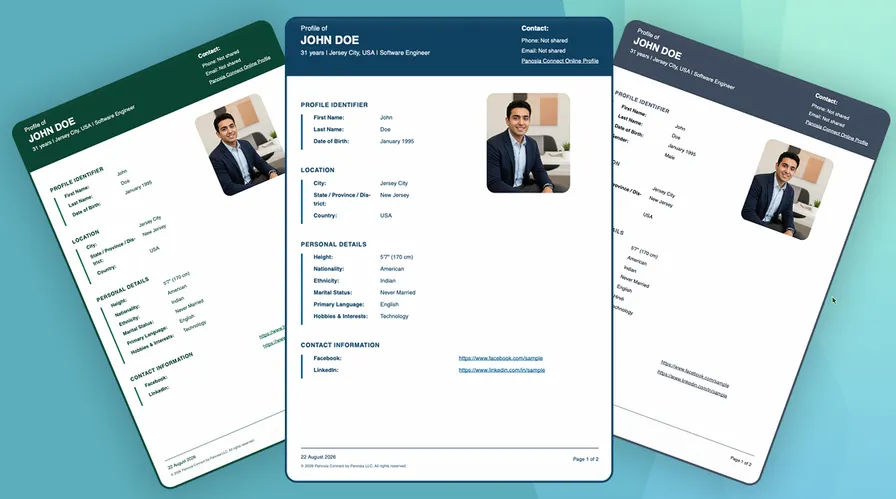
There are still moments a static file is genuinely useful, like sending something to a relative who wants to print it. Profile Export covers that: download your profile as a formatted biodata PDF anytime, choose a theme, and choose how much to include, from public details only up to your full profile. It's free.
Beyond your own link, a few ways to increase your reach:
- Share your profile with family and relatives over WhatsApp or email
- Post in relevant Facebook or community groups
- Ask people you trust to join and connect with you
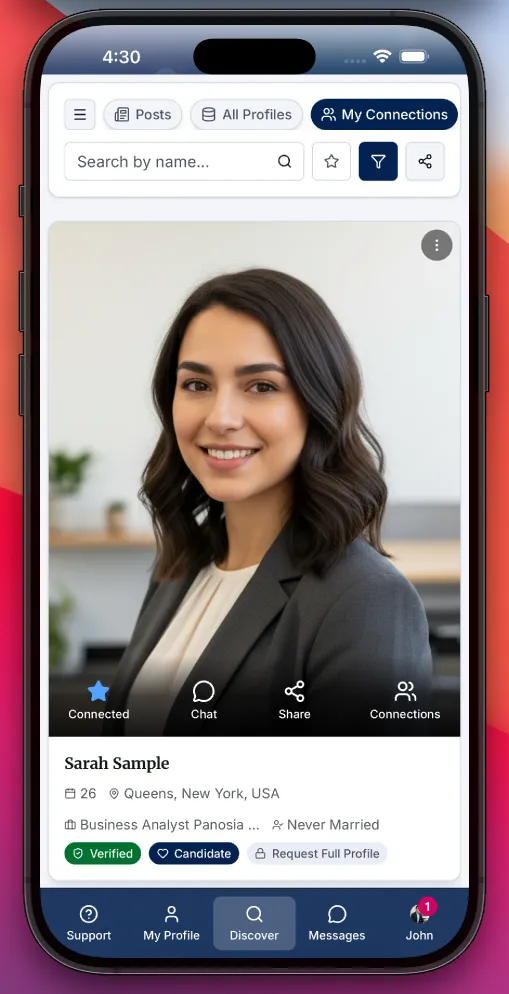
- Use Discover to search other profiles by filters like gender, age range, location, marital status, and verification status, once you've completed the Level 1 ID Verification from Step 4
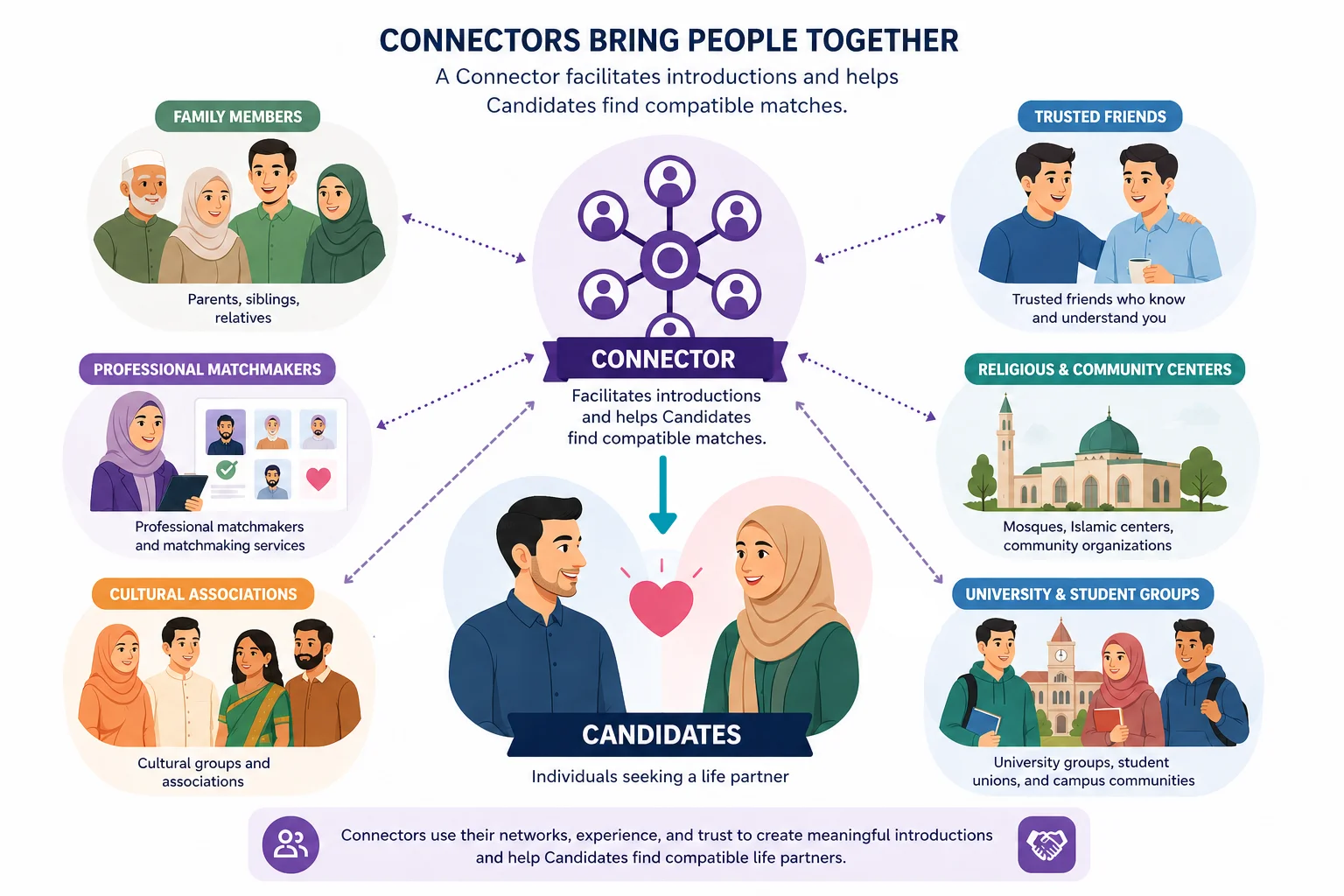
- Reach out to Connectors, family, friends, or community members who help facilitate introductions, and ask them to keep you in mind
Panosia Connect works through networks, not isolation. The more the right people see your profile, the better your odds of a meaningful connection.
Step 6: Message Before You Meet
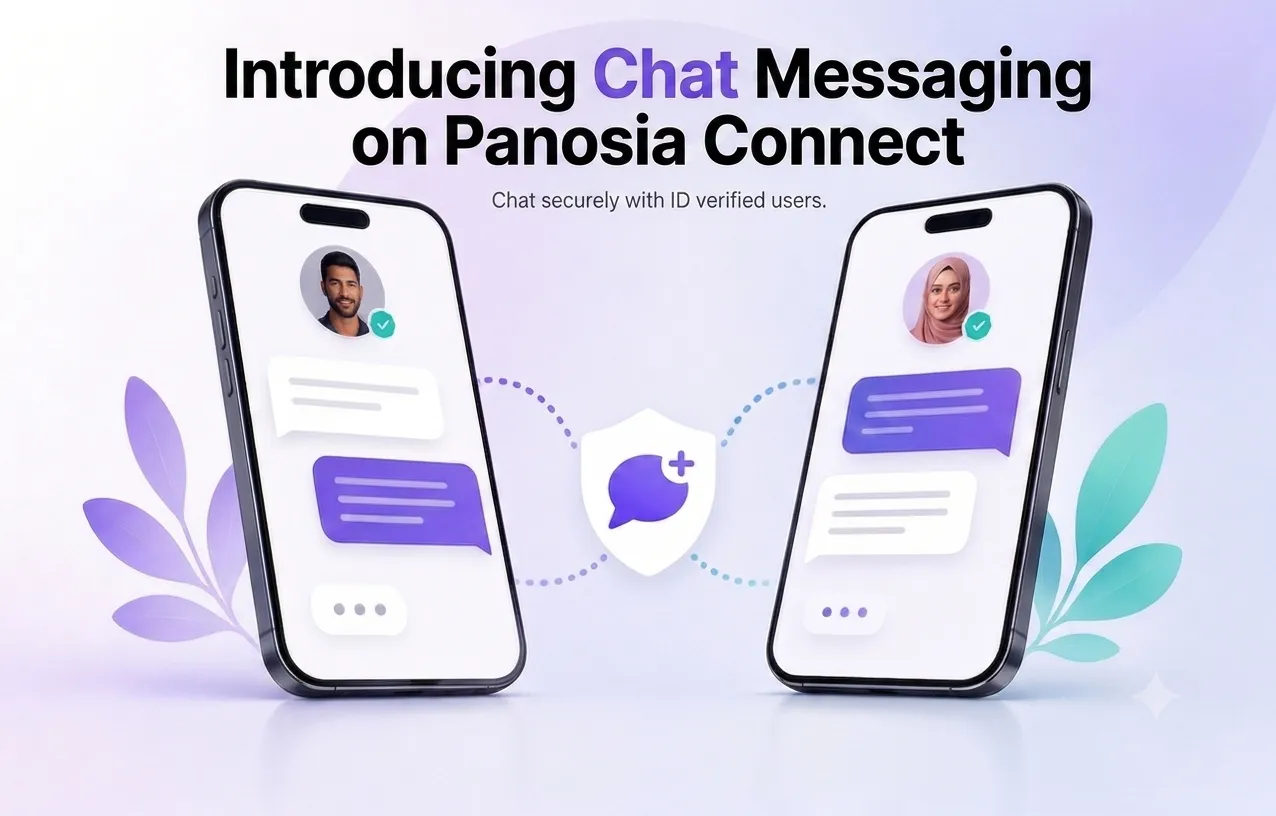
With Level 1 ID Verification from Step 4 done, you can now message anyone or request their Private View. Once someone catches your interest, send a request to connect or view more of their profile. From there, Secure Chat, the platform's built-in messaging, is where the real conversation happens.
You don't need to hand over a phone number or personal email to start talking. Message the Candidate directly through the app. If you want a lower-stakes way in first, message their Verification References, the people who already know them, before reaching out to the Candidate themselves. Once you've been granted private access, you can message their family or friends too, the same people you'd see in their trust network.
Keep the early conversation respectful and unhurried. Move to a call only once both sides are comfortable, and involve family or someone you trust early rather than late; it's safer, and it fits how this community is meant to work.
Step 7: Involve Family and Move Forward Thoughtfully
As a conversation moves from a first exchange toward something more serious, bring in family and people you trust. Encourage open discussion on both sides, not just your own. Take the time to understand compatibility beyond the surface details on a profile: values, expectations, and how you each handle disagreement.
Panosia Connect is built to support that kind of thoughtful, responsible decision-making, not just introductions. The platform can help you find and vet the right person; the judgment still has to be yours and your family's.
Frequently Asked Questions
Is Panosia Connect free?
Yes. Creating a profile, privacy controls, and family features are all free forever, with no subscriptions. Searching, browsing, and messaging require the one-time Level 1 ID Verification covered in Step 4, which is also the only paid step on the platform.
Do I have to get verified?
Not to create or share your profile. But Level 1 ID Verification, covered in Step 4, is required before you can search, browse, or message anyone. Levels 2 and 3 stay fully optional, for extra credibility when you want it.
What if I don't want my photo public?
You control that field by field. Set your photo to blurred or hidden in your Public View, and only share the full version with people you approve for Private View.
How is this different from a swipe-style dating app?
Panosia Connect isn't a dating app. It's built for people seriously seeking marriage, and it's designed around family and community involvement rather than anonymous browsing. There's no swiping, and no algorithm generating "matches" for you.
Can my family help manage my profile?
Yes, in two ways. A parent, sibling, or someone else close to you can join as a Connector, being a reference for people they know and helping with introductions. And if someone isn't on the platform themselves, a verified member can create and manage a Managed Profile on their behalf, clearly marked with a "Managed" badge.
Final Thought
Finding the right partner isn't about speed. It's about clarity, trust, and effort. The more thoughtfully you present yourself, build your network, and engage with others, the better your odds of finding someone genuinely compatible.