How Panosia Connect Works
Step 1 — Create Your Profile
Every user on Panosia Connect has one of two roles:
- Candidate
- Connector
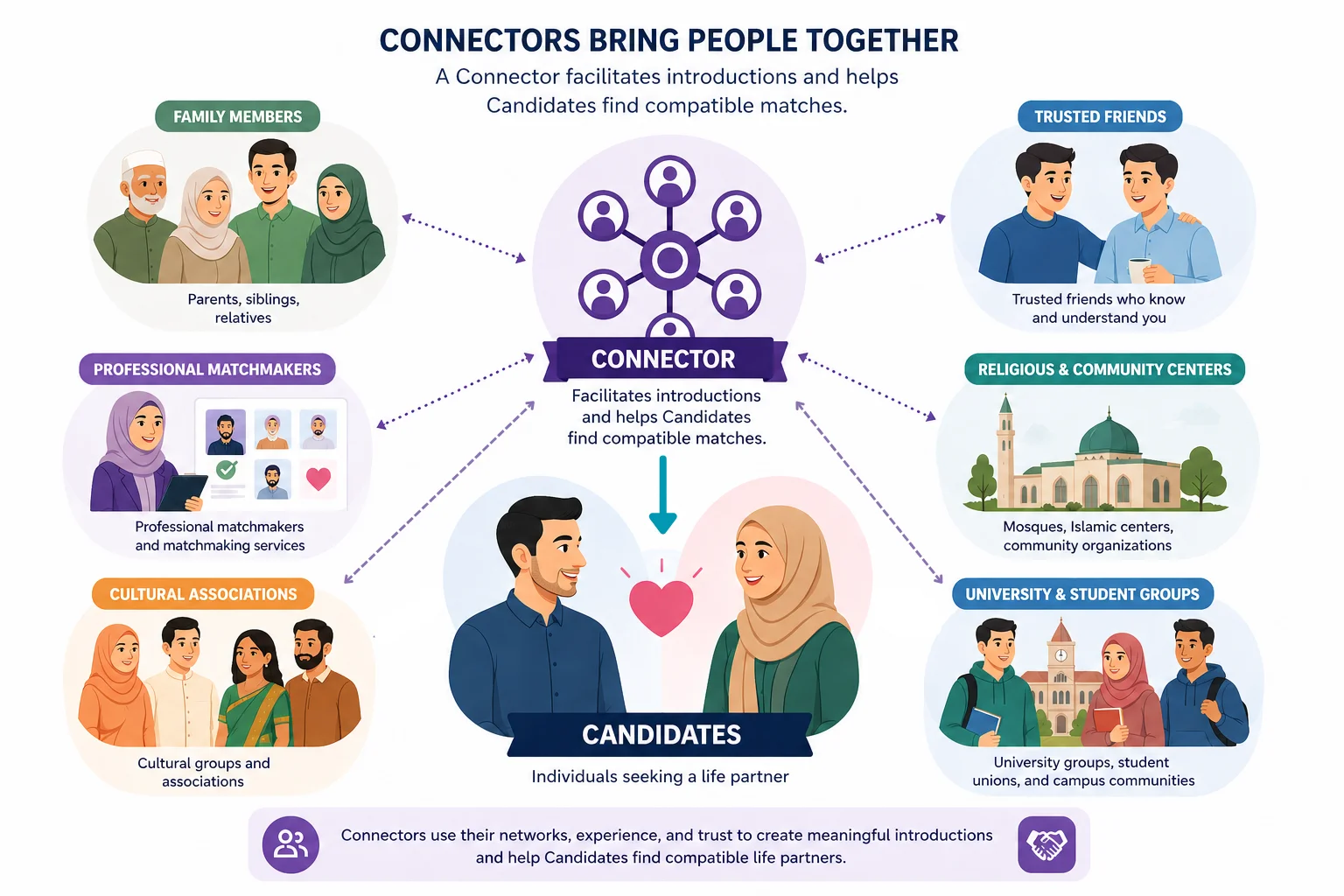
A Candidate is someone seeking a life partner for marriage.
A Connector is an individual or organization that facilitates introductions and helps Candidates find compatible matches. This includes family members (e.g., parents, siblings, relatives), trusted friends, professional matchmakers, and community-based entities such as religious centers, cultural associations, or university groups.
You can switch between these roles at any time.
If you are a Connector, a basic profile is enough to begin. However, adding more details increases your credibility and builds trust within the network.
If you are a Candidate, sharing relevant and honest information makes it easier for others to understand you and express genuine interest.
Step 2 — Set Your Privacy Controls
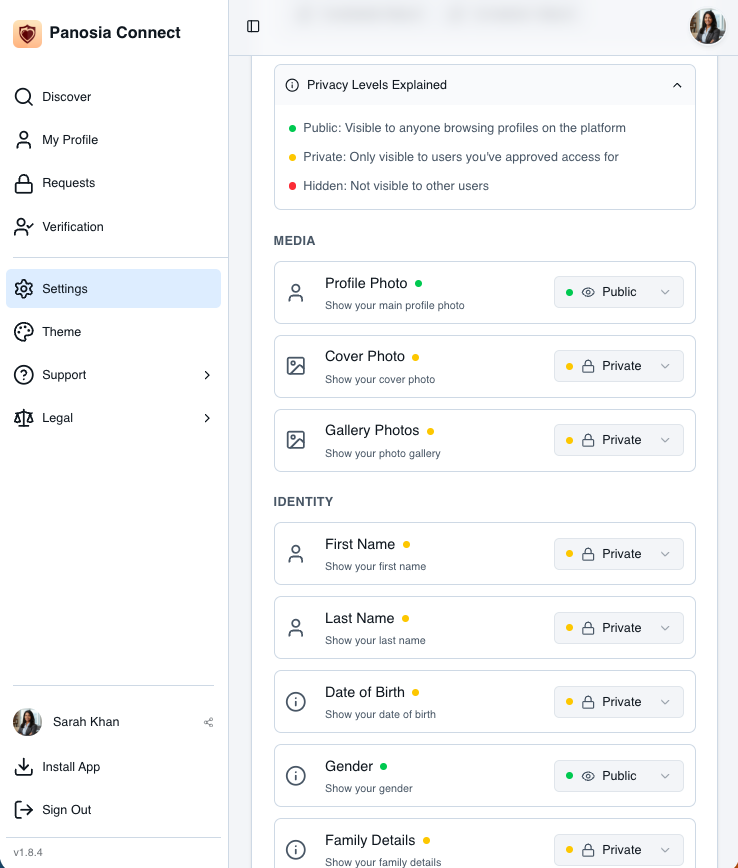
Privacy is central to the design of Panosia Connect.
You decide:
- What information is public
- What is visible only to whom with approval mechanism
- What remains completely hidden
Changes update instantly, giving you real-time control over your data. Unlike many platforms, visibility is intentional — not automatic.
Step 3 — Build Your Network
Panosia Connect grows through trusted relationships. To share your profile, simply open it and tap Share. You can send it through email, text message, WhatsApp, or any platform you prefer.
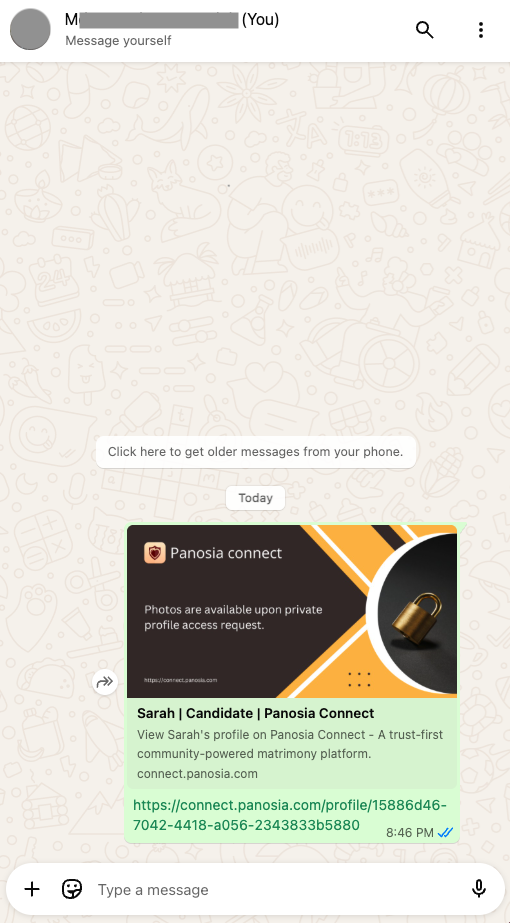
You can also share someone else’s profile within your trusted circle.
When you receive a profile, click Add to Connections to bring them into your network.
This creates a visible structure of real relationships — not anonymous browsing.
Step 4 — Add Family and Social Connections
Once connected, you can label each relationship as Father, Mother, Brother, Sister, Relative, Friend Colleague etc.
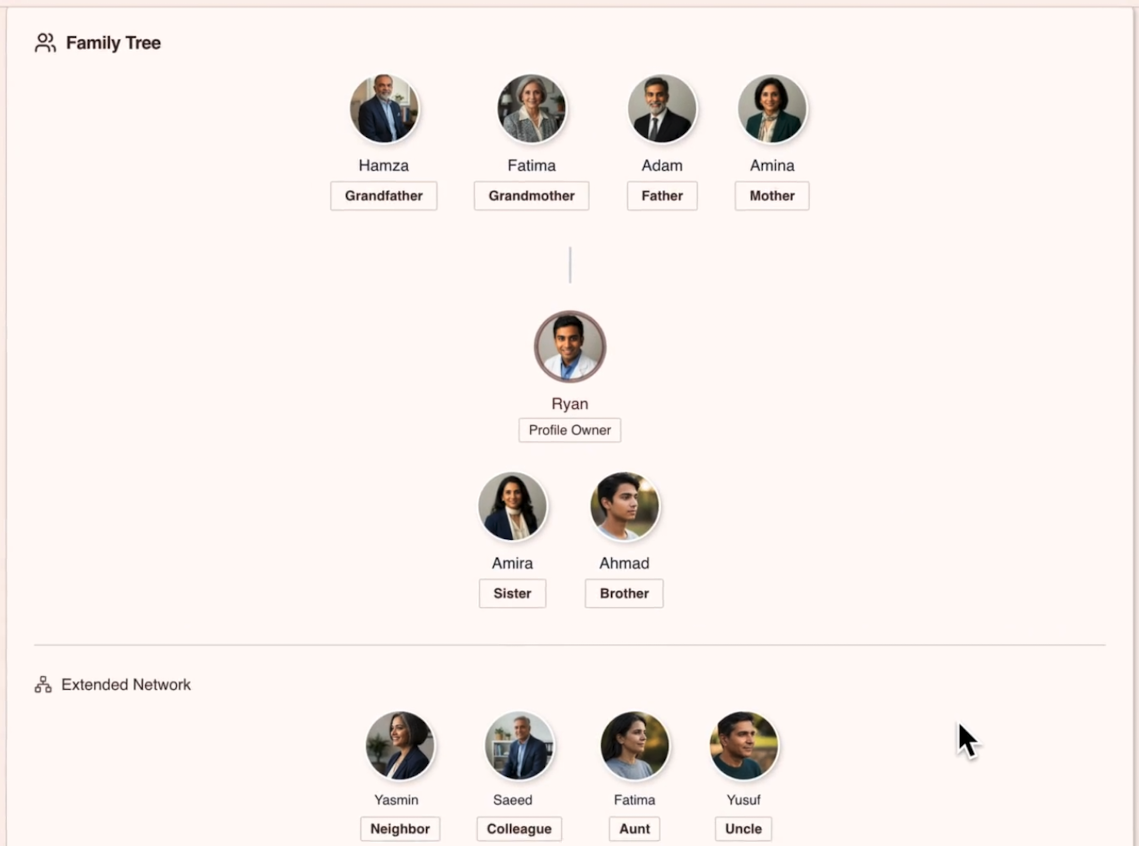
For Candidates, this step builds authenticity.
It allows others to see that your profile is rooted in real community relationships.
Trust becomes visible.
Step 5 — Discover and Search
With your network in place, you can begin exploring.
On the Discover page, you can:
- Browse profiles
- Use filters to refine your search
- Shortlist profiles for later review
- Send connection requests
You can also view a person’s visible connections, helping you understand shared networks and mutual contacts.
This makes discovery more natural — grounded in community rather than random exposure.
Step 6 — Request Private Access and Communicate
Not all information is public by default.
For example:
Ryan discovers Sarah’s profile.
Sarah has chosen to keep her photos and detailed information private.
If Ryan is interested, he can request private access. Sarah receives a notification and reviews Ryan’s profile first. If she approves, Ryan gains access to:
- Private photos
- Detailed profile information
- Verification report
- Family tree
Sarah can revoke access at any time. Control remains with the profile owner.
Step 7 — Professional Digital ID Verification
Trust requires verification. Panosia Connect offers a structured Digital ID Verification process to reduce fraud and misrepresentation.
Here is how it works:
- A user requests verification.
- A live video session is conducted.
- Government ID, face match, name, age, and gender are checked.
- Once verified, name, gender, and date of birth are permanently locked.
- A “Verified” badge appears on the profile.
A PDF verification report is generated and visible to users with private access. It clearly shows what was reviewed and confirmed. If someone later uploads misleading content, others can compare it with the verified report. Users can also request that a potential match complete verification before serious discussions move forward.
Verification strengthens accountability across the network.
Designed for Accountability
Panosia Connect is structured around three principles:
- Identity before interaction
- Privacy before exposure
- Community before algorithms
Instead of encouraging endless browsing, the platform encourages intentional, trust-based connection.
Marriage deserves infrastructure built for responsibility.
That is how Panosia Connect works.